How to update your instrument
- Once you’ve found your instrument, click on the name of the instrument, if you haven’t done so, to go to the instrument page. (For more details on how to search for an instrument see "How to find an instrument".)
- On the instrument page you’ll see an "Edit" tab.
- If you don’t see this tab please make sure you are logged in and contact the instrument PI to request access, or contact us.
- Clicking on the Edit tab will take you to the form where you can review and update the information that has been populated.
- Once you are done making changes use the "Save" button at the bottom of the page to save your work.
- Note only the fields with a red * are required to be able to save, so if you need to save it and return that is fine.
- This is your team’s page now. Please be sure to keep it up to date so that NASA Headquarters has access to current information.
How to reset your password
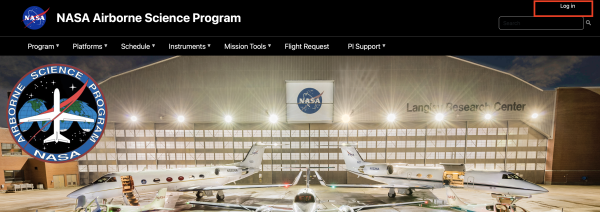
- Go to the website and click on the "Log in" link
- In the window that pops up choose "Reset your password"
- In the Reset your password form, enter your username or email address and submit the form by clicking on the "Submit" button.
- If you receive an error that the username or email address you have entered is not recognized, and you believe that the account does already exist, please contact us for assistance.
- An email will be sent to you with instructions on how to log in and reset your password. Click on the link in the email, or copy and paste it into your browser and follow the instructions. See "How to use a one time link".
- If you don’t receive an email from us within an hour (be sure to check your spam folder), please contact us for assistance.